> ## Documentation Index
> Fetch the complete documentation index at: https://private-7c7dfe99-detect-table-modification.mintlify.site/llms.txt
> Use this file to discover all available pages before exploring further.
> Step-by-step guide to create your first Amazon S3 ClickPipe.
# Creating your first Amazon S3 ClickPipe
export const Image = ({img, alt, size = "lg"}) => {
const normalizedSize = ["sm", "md", "lg"].includes(size) ? size : "lg";
return

;
};
The S3 ClickPipe provides a fully-managed and resilient way to ingest data from Amazon S3 and S3-compatible object stores into ClickHouse Cloud. It supports both **one-time** and **continuous ingestion** with exactly-once semantics.
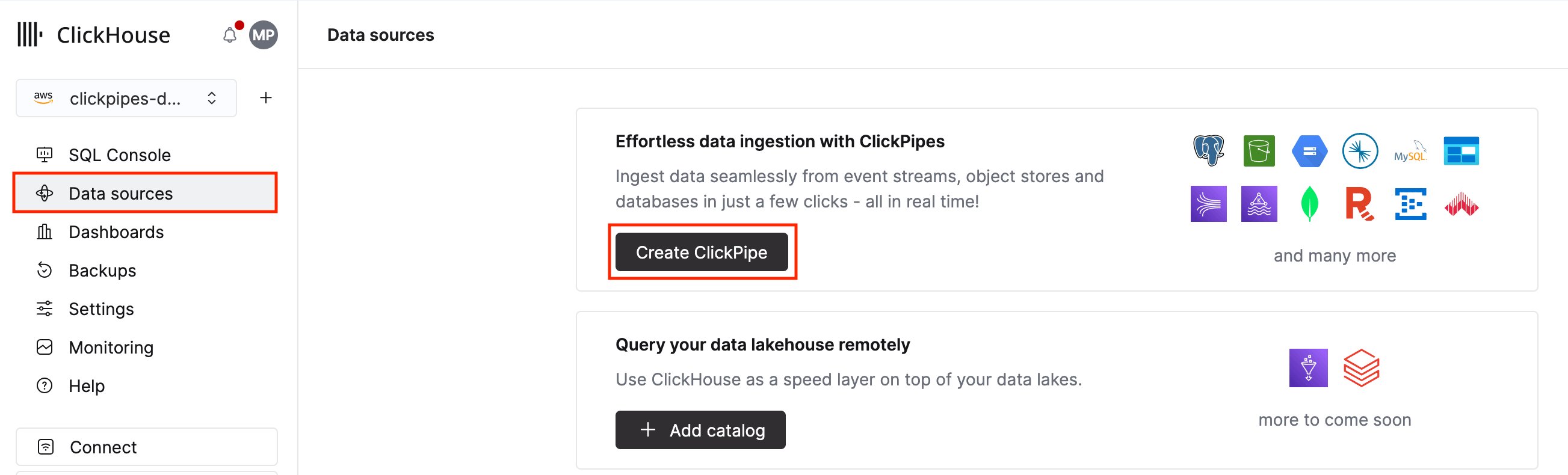
**1.** In ClickHouse Cloud, select **Data sources** in the main navigation menu and click **Create ClickPipe**.
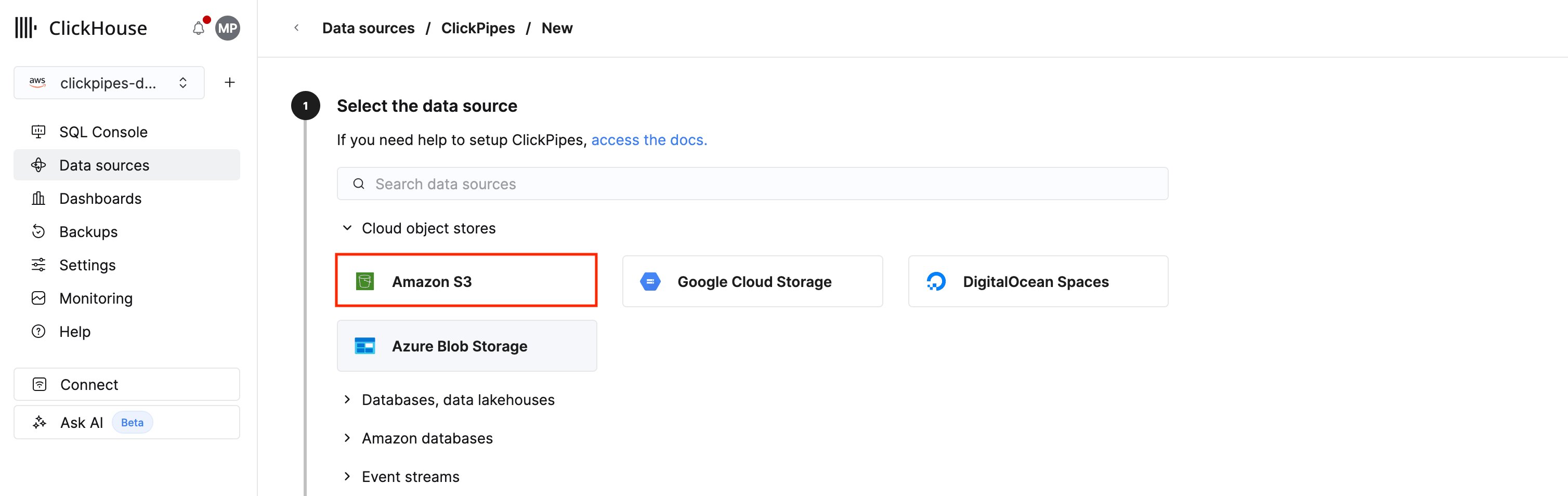
 **2.** Click the **Amazon S3** tile. You can also use this tile to connect to other S3-compatible services not listed in the ClickPipes UI.
 Due to differences in URL formats and API implementations across object storage service providers, not all S3-compatible services are supported out-of-the-box. If you're running into issues with a service that isn't listed under [supported data sources](/integrations/clickpipes/object-storage/amazon-s3/overview#supported-data-sources), please [reach out to our team](https://clickhouse.com/company/contact?loc=clickpipes).
**1.** To setup a new ClickPipe, you must provide details on how to connect to and authenticate with your object storage service.
Due to differences in URL formats and API implementations across object storage service providers, not all S3-compatible services are supported out-of-the-box. If you're running into issues with a service that isn't listed under [supported data sources](/integrations/clickpipes/object-storage/amazon-s3/overview#supported-data-sources), please [reach out to our team](https://clickhouse.com/company/contact?loc=clickpipes).
**1.** To setup a new ClickPipe, you must provide details on how to connect to and authenticate with your object storage service.
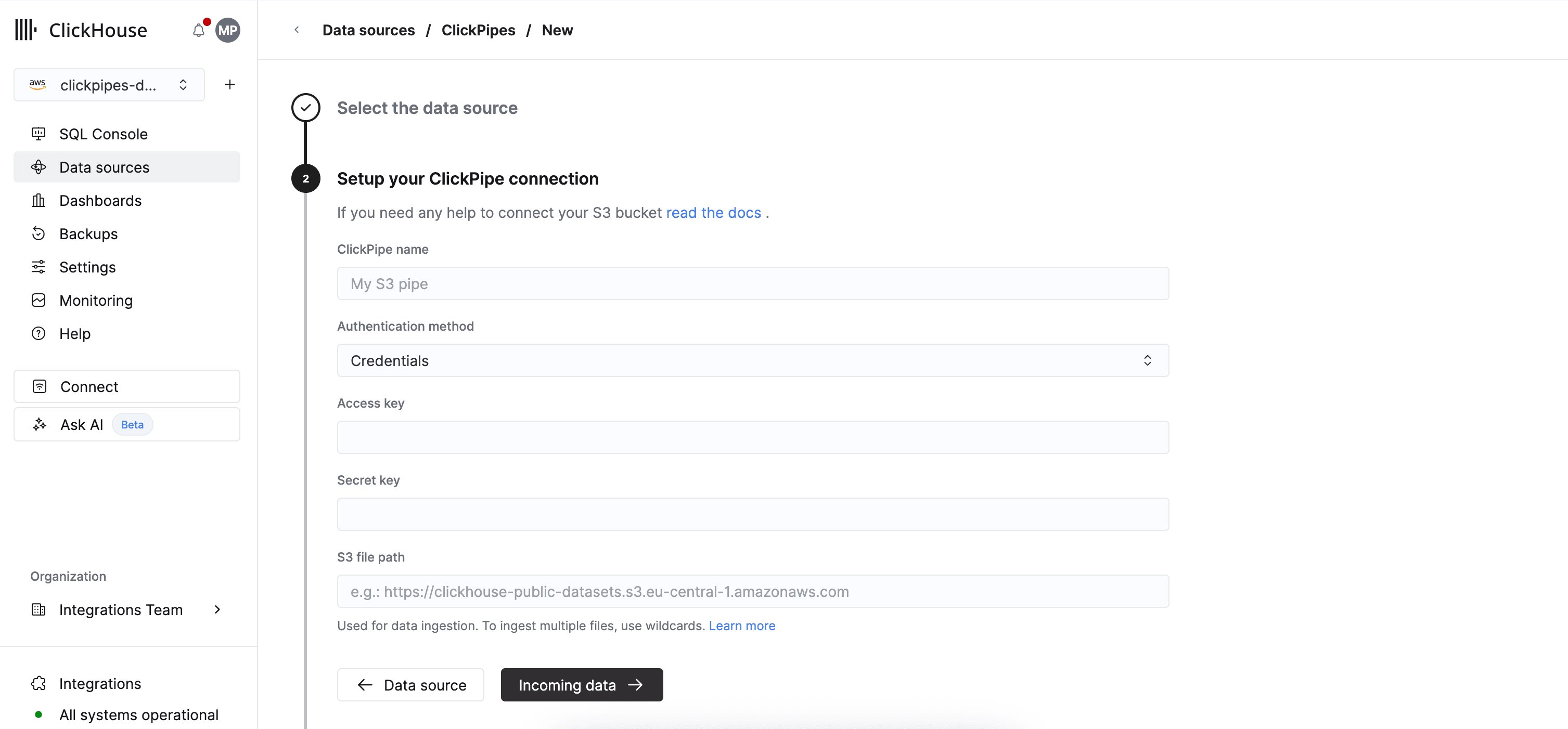 * **Authentication method**: the S3 ClickPipe supports [IAM credentials](/integrations/clickpipes/object-storage/amazon-s3/overview#iam-credentials) (`Credentials`) and [IAM role-based authentication](/integrations/clickpipes/object-storage/amazon-s3/overview#iam-role) (`IAM role`). See the [reference documentation](/integrations/clickpipes/object-storage/amazon-s3/overview#access-control) for guidance on authentication and permissions.
* **S3 file path**: the S3 ClickPipe expects a [virtual-hosted-style URI](https://docs.aws.amazon.com/AmazonS3/latest/userguide/VirtualHosting.html#virtual-hosted-style-access).
```bash theme={null}
https://bucket-name.s3.region-code.amazonaws.com/key-name
```
You can use POSIX wildcards to match multiple files or prefixes. See the [reference documentation](/integrations/clickpipes/object-storage/amazon-s3/overview#file-pattern-matching) for guidance on supported patterns.
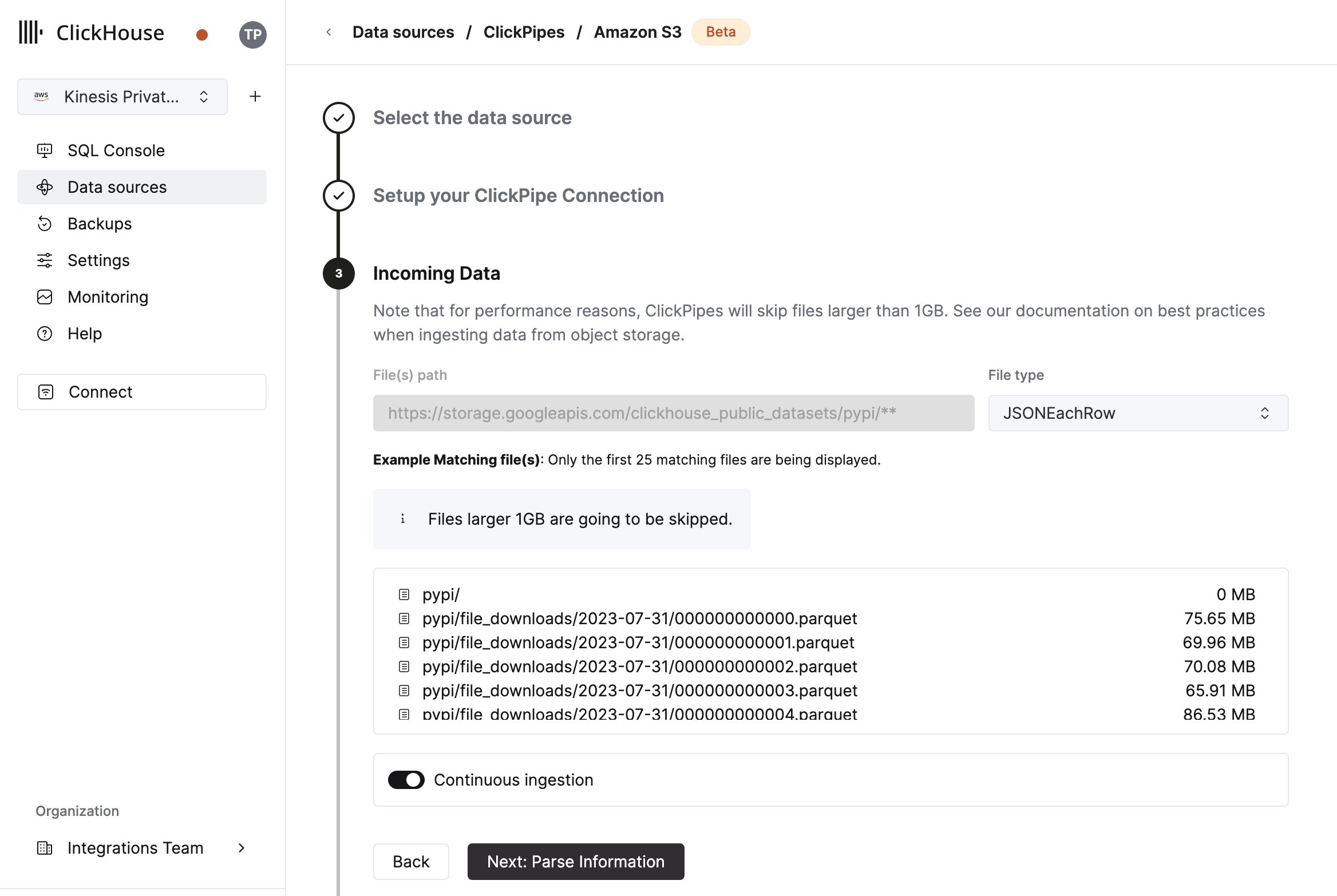
**2.** Click **Incoming data**. ClickPipes will fetch metadata from your bucket for the next step.
The UI will display a list of files in the specified bucket.
Select your data format (we currently support a subset of ClickHouse formats) and if you want to enable continuous ingestion.
See the "continuous ingest" section in the overview page for more details.
* **Authentication method**: the S3 ClickPipe supports [IAM credentials](/integrations/clickpipes/object-storage/amazon-s3/overview#iam-credentials) (`Credentials`) and [IAM role-based authentication](/integrations/clickpipes/object-storage/amazon-s3/overview#iam-role) (`IAM role`). See the [reference documentation](/integrations/clickpipes/object-storage/amazon-s3/overview#access-control) for guidance on authentication and permissions.
* **S3 file path**: the S3 ClickPipe expects a [virtual-hosted-style URI](https://docs.aws.amazon.com/AmazonS3/latest/userguide/VirtualHosting.html#virtual-hosted-style-access).
```bash theme={null}
https://bucket-name.s3.region-code.amazonaws.com/key-name
```
You can use POSIX wildcards to match multiple files or prefixes. See the [reference documentation](/integrations/clickpipes/object-storage/amazon-s3/overview#file-pattern-matching) for guidance on supported patterns.
**2.** Click **Incoming data**. ClickPipes will fetch metadata from your bucket for the next step.
The UI will display a list of files in the specified bucket.
Select your data format (we currently support a subset of ClickHouse formats) and if you want to enable continuous ingestion.
See the "continuous ingest" section in the overview page for more details.
 In the next step, you can select whether you want to ingest data into a new ClickHouse table or reuse an existing one.
Follow the instructions in the screen to modify your table name, schema, and settings.
You can see a real-time preview of your changes in the sample table at the top.
In the next step, you can select whether you want to ingest data into a new ClickHouse table or reuse an existing one.
Follow the instructions in the screen to modify your table name, schema, and settings.
You can see a real-time preview of your changes in the sample table at the top.
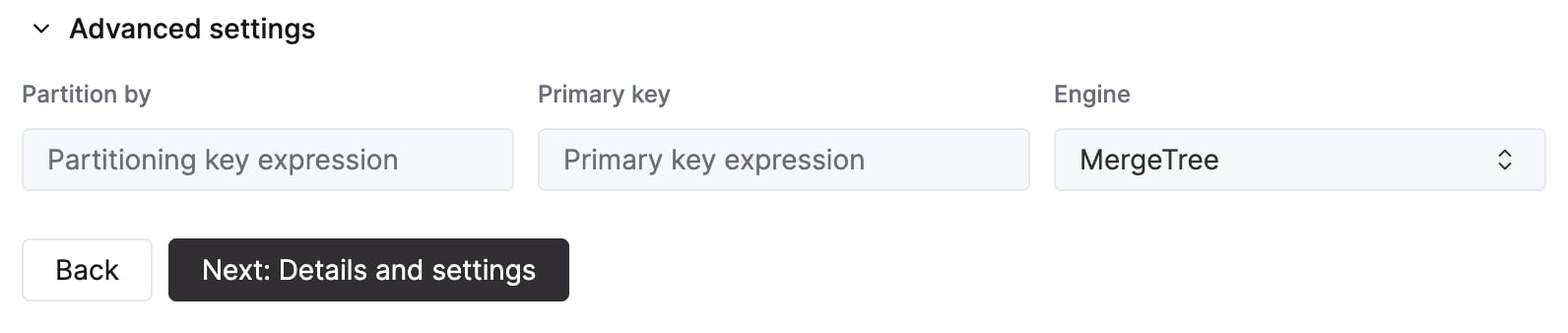
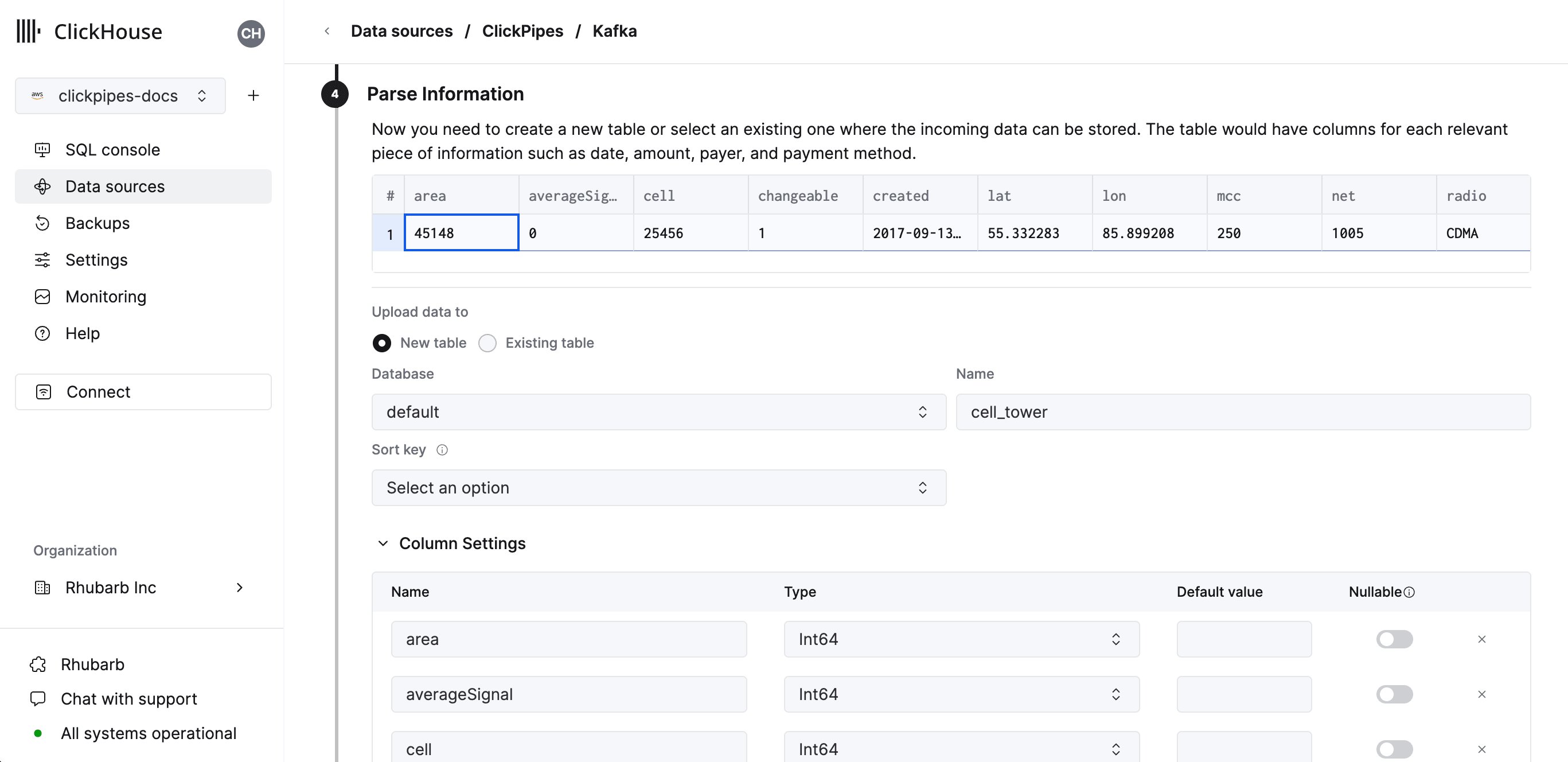 You can also customize the advanced settings using the controls provided
 Alternatively, you can decide to ingest your data in an existing ClickHouse table.
In that case, the UI will allow you to map fields from the source to the ClickHouse fields in the selected destination table.
Alternatively, you can decide to ingest your data in an existing ClickHouse table.
In that case, the UI will allow you to map fields from the source to the ClickHouse fields in the selected destination table.
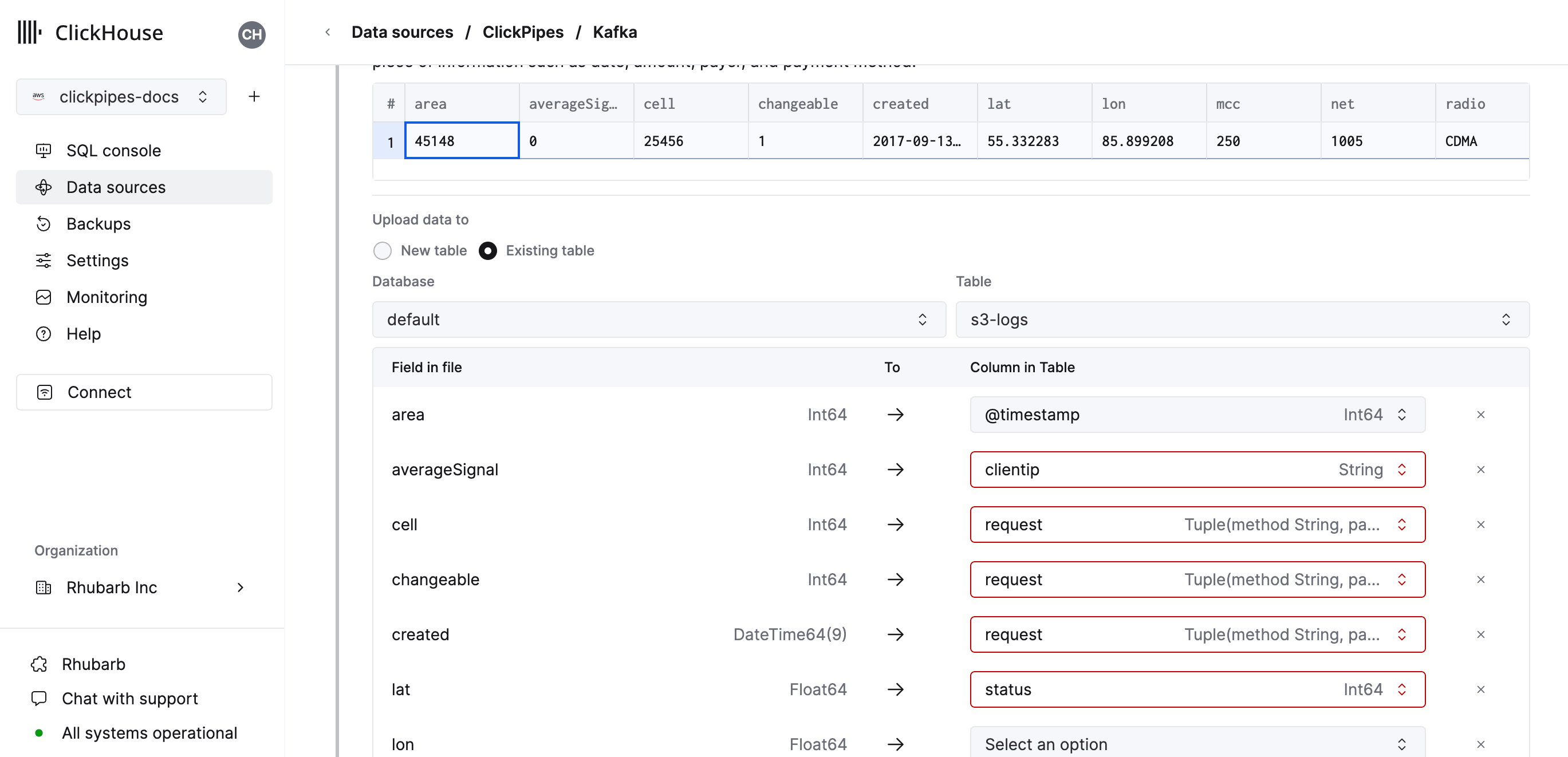 You can also map [virtual columns](/reference/functions/table-functions/s3#virtual-columns), like `_path` or `_size`, to fields.
Finally, you can configure permissions for the internal ClickPipes user.
**Permissions:** ClickPipes will create a dedicated user for writing data into a destination table. You can select a role for this internal user using a custom role or one of the predefined role:
* `Full access`: with the full access to the cluster. Required if you use materialized view or Dictionary with the destination table.
* `Only destination table`: with the `INSERT` permissions to the destination table only.
You can also map [virtual columns](/reference/functions/table-functions/s3#virtual-columns), like `_path` or `_size`, to fields.
Finally, you can configure permissions for the internal ClickPipes user.
**Permissions:** ClickPipes will create a dedicated user for writing data into a destination table. You can select a role for this internal user using a custom role or one of the predefined role:
* `Full access`: with the full access to the cluster. Required if you use materialized view or Dictionary with the destination table.
* `Only destination table`: with the `INSERT` permissions to the destination table only.
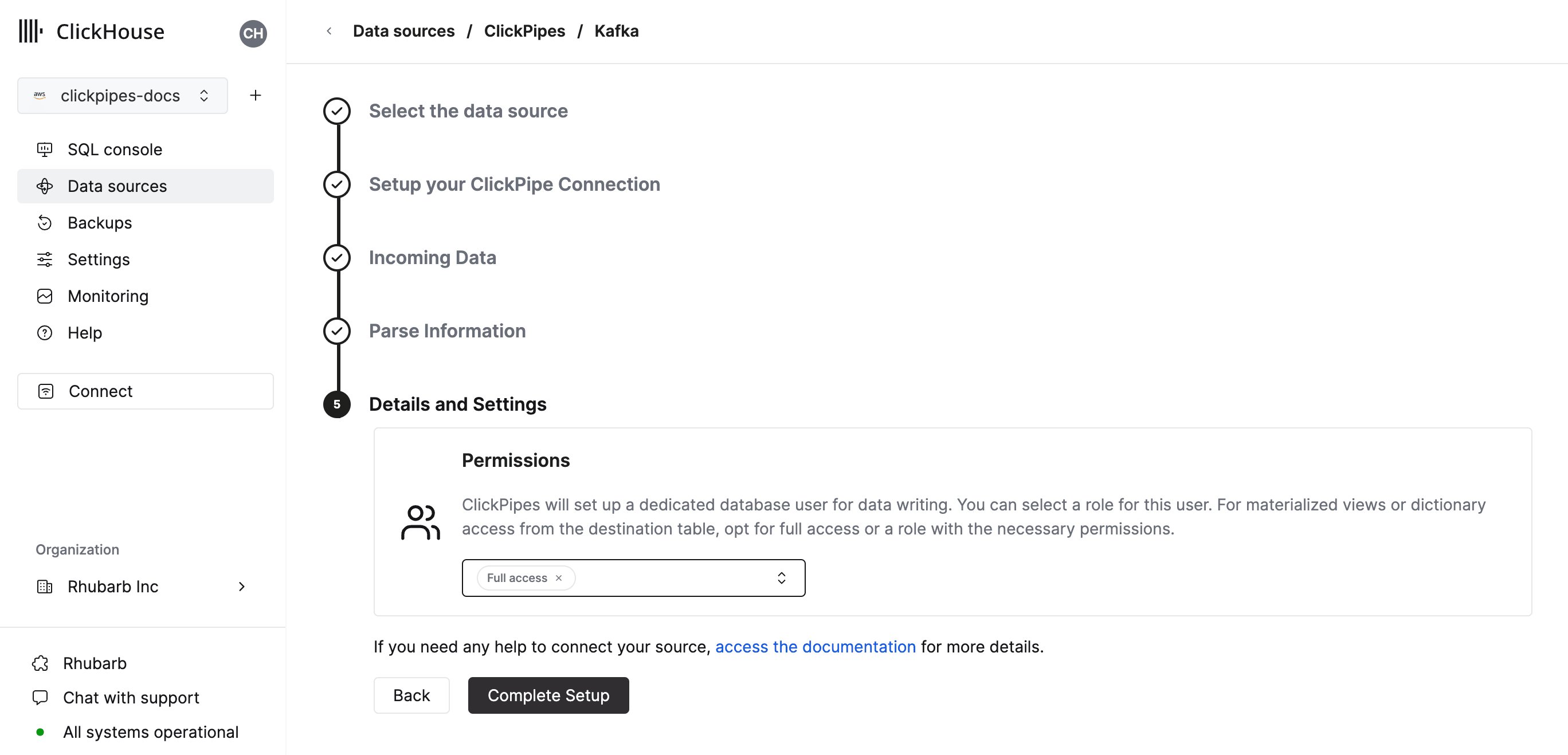 By clicking on "Complete Setup", the system will register your ClickPipe, and you'll be able to see it listed in the summary table.
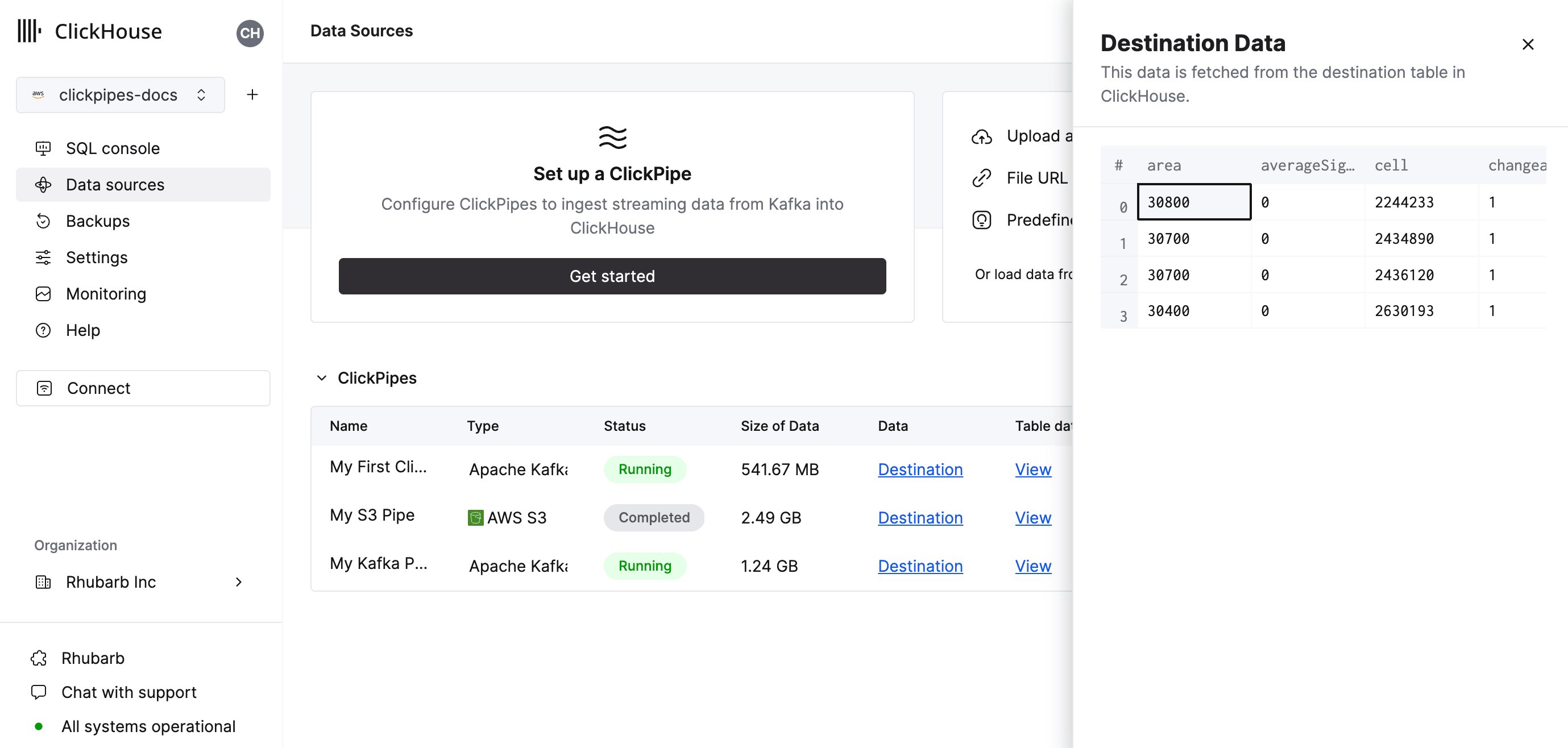
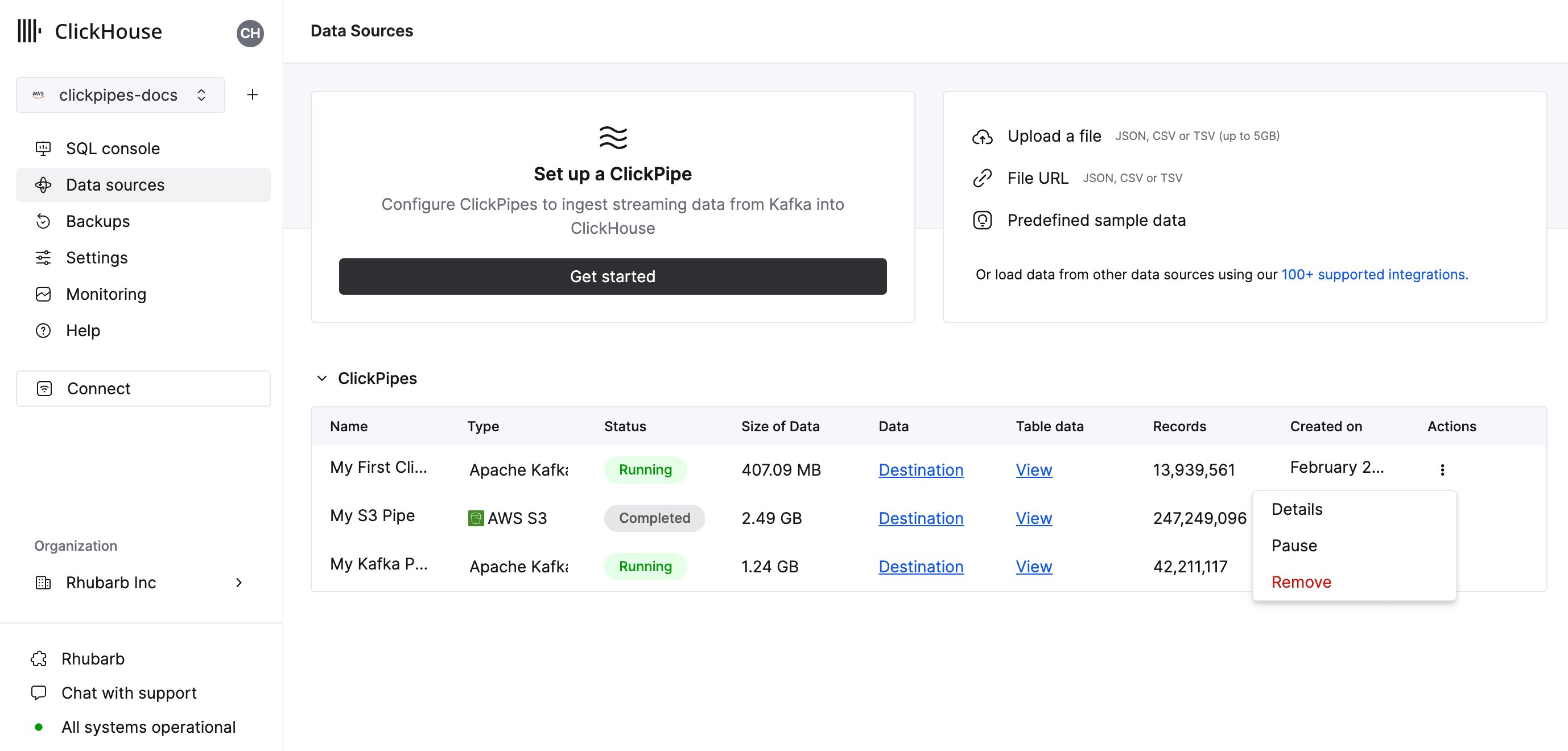 The summary table provides controls to display sample data from the source or the destination table in ClickHouse
 As well as controls to remove the ClickPipe and display a summary of the ingest job.
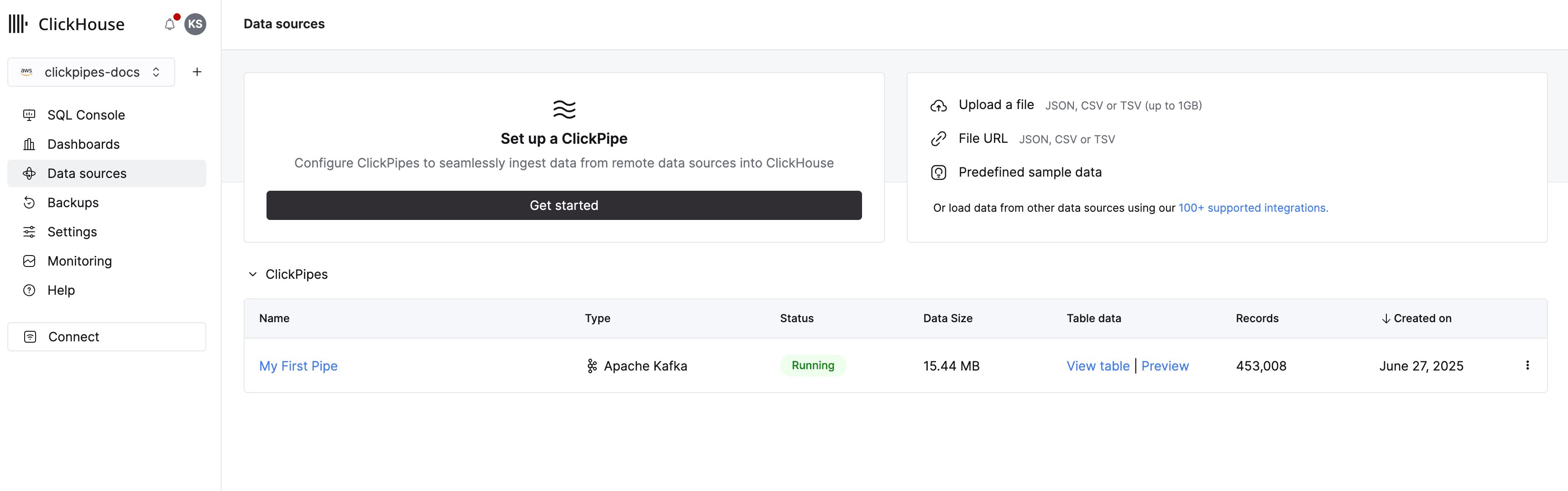 **Congratulations!** you have successfully set up your first ClickPipe.
If this is a ClickPipe configure for continuous ingestion, it will be continuously running, ingesting data in real-time from your remote data source.
Otherwise, it will ingest the batch and complete.
**Congratulations!** you have successfully set up your first ClickPipe.
If this is a ClickPipe configure for continuous ingestion, it will be continuously running, ingesting data in real-time from your remote data source.
Otherwise, it will ingest the batch and complete.