> ## Documentation Index
> Fetch the complete documentation index at: https://private-7c7dfe99-detect-table-modification.mintlify.site/llms.txt
> Use this file to discover all available pages before exploring further.

> Metabase is an easy-to-use, open source UI tool for asking questions about your data.

# Connecting Metabase to ClickHouse

export const PartnerBadge = () => {
  return <div className="PartnerBadge">
            <div className="PartnerBadgeIcon">
                <svg width="16" height="16" viewBox="0 0 16 16" fill="none" xmlns="http://www.w3.org/2000/svg">
                    <polyline points="12.5 9.5 10 12 6 11 2.5 8.5" stroke="currentColor" strokeLinecap="round" strokeLinejoin="round" strokeWidth="1" />
                    <polyline points="4.54 4.41 8 3.5 11.46 4.41" stroke="currentColor" strokeLinecap="round" strokeLinejoin="round" strokeWidth="1" />
                    <path d="M2.15,3.78 L0.55,6.95 A0.5,0.5 0,0,0 0.77,7.62 L2.5,8.5 L4.54,4.41 L2.82,3.55 A0.5,0.5 0,0,0 2.15,3.78 Z" stroke="currentColor" strokeLinecap="round" strokeLinejoin="round" strokeWidth="1" />
                    <path d="M13.5,8.5 L15.23,7.62 A0.5,0.5 0,0,0 15.45,6.95 L13.85,3.78 A0.5,0.5 0,0,0 13.18,3.55 L11.46,4.41 Z" stroke="currentColor" strokeLinecap="round" strokeLinejoin="round" strokeWidth="1" />
                    <path d="M11.5,4.5 L9,4.5 L6.15,7.27 A0.5,0.5 0,0,0 6.24,8.05 C7.33,8.74 8.81,8.72 10,7.5 L12.5,9.5 L13.5,8.5" stroke="currentColor" strokeLinecap="round" strokeLinejoin="round" strokeWidth="1" />
                    <polyline points="7.75 13.5 5.15 12.85 3.5 11.67" stroke="currentColor" strokeLinecap="round" strokeLinejoin="round" strokeWidth="1" />
                </svg>
            </div>
            Partner Integration
        </div>;
};

export const Image = ({img, alt, size = "lg"}) => {
  const normalizedSize = ["sm", "md", "lg"].includes(size) ? size : "lg";
  return <div className={`ch-image-${normalizedSize}`}>
      <Frame>
        <img src={img} alt={alt} />
      </Frame>
    </div>;
};

Metabase is an easy-to-use, open source UI tool for asking questions about your data. Metabase is a Java application that can be run by simply <a href="https://www.metabase.com/start/oss/jar" target="_blank">downloading the JAR file</a> and running it with `java -jar metabase.jar`. Metabase connects to ClickHouse using a JDBC driver that you download and put in the `plugins` folder:

<h2 id="goal">
  Goal
</h2>

In this guide you will ask some questions of your ClickHouse data with Metabase and visualize the answers.  One of the answers will look like this:

<Image size="md" img="https://mintcdn.com/private-7c7dfe99-detect-table-modification/svLCKm9RWi4jibqG/images/integrations/data-visualization/metabase_08.webp?fit=max&auto=format&n=svLCKm9RWi4jibqG&q=85&s=ed3177332a1002ccce163945a51229d1" alt="Metabase pie chart visualization showing data from ClickHouse" border width="1222" height="893" data-path="images/integrations/data-visualization/metabase_08.webp" />

<p />

<Tip>
  **Add some data**

  If you don't have a dataset to work with you can add one of the examples.  This guide uses the [UK Price Paid](/get-started/sample-datasets/uk-price-paid) dataset, so you might choose that one.  There are several others to look at in the same documentation category.
</Tip>

<Steps>
  <Step title="Gather your connection details" id="1-gather-your-connection-details">
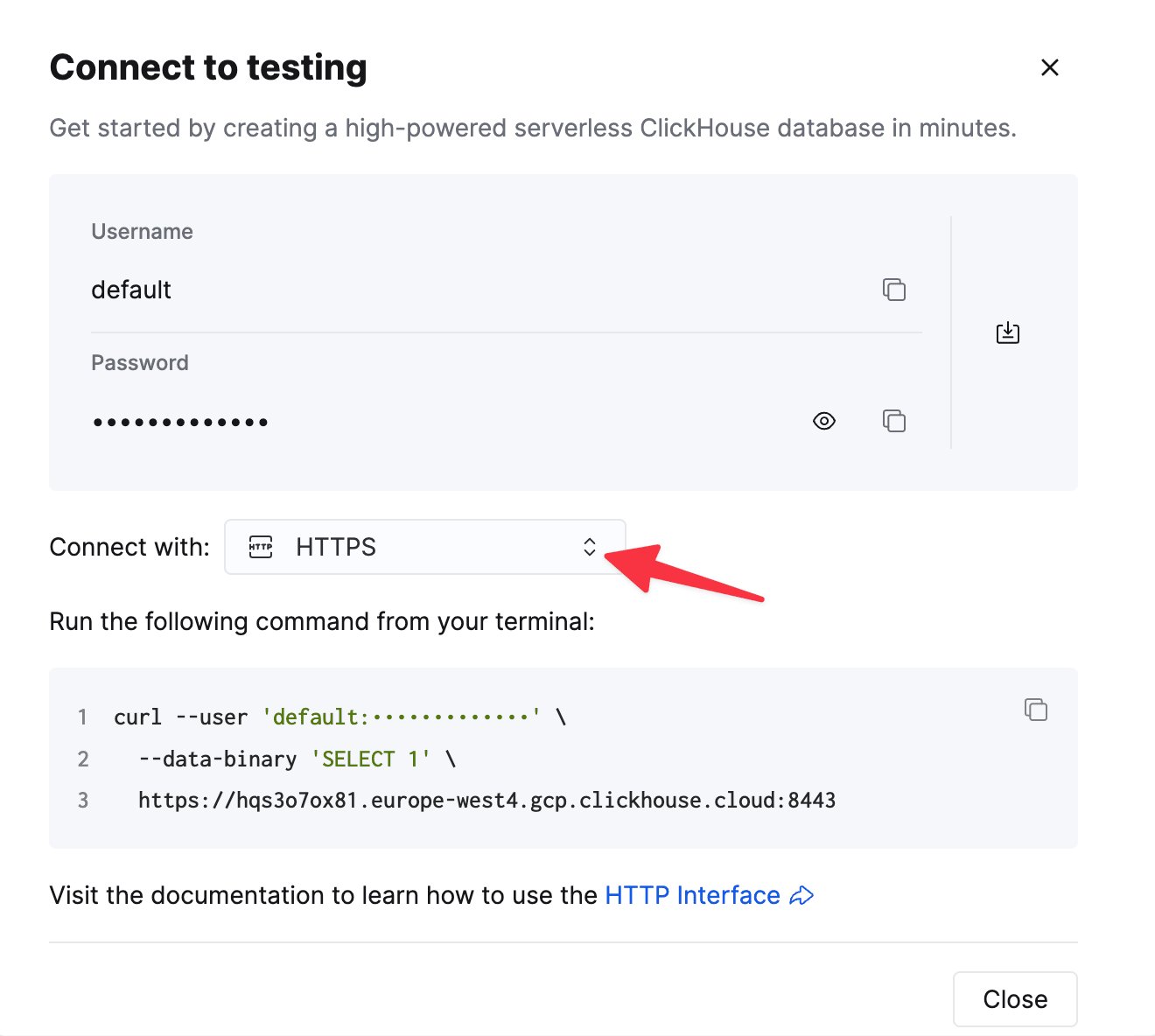
    To connect to ClickHouse with HTTP(S) you need this information:

    | Parameter(s)              | Description                                                                                                    |
    | ------------------------- | -------------------------------------------------------------------------------------------------------------- |
    | `HOST` and `PORT`         | Typically, the port is 8443 when using TLS or 8123 when not using TLS.                                         |
    | `DATABASE NAME`           | Out of the box, there is a database named `default`, use the name of the database that you want to connect to. |
    | `USERNAME` and `PASSWORD` | Out of the box, the username is `default`. Use the username appropriate for your use case.                     |

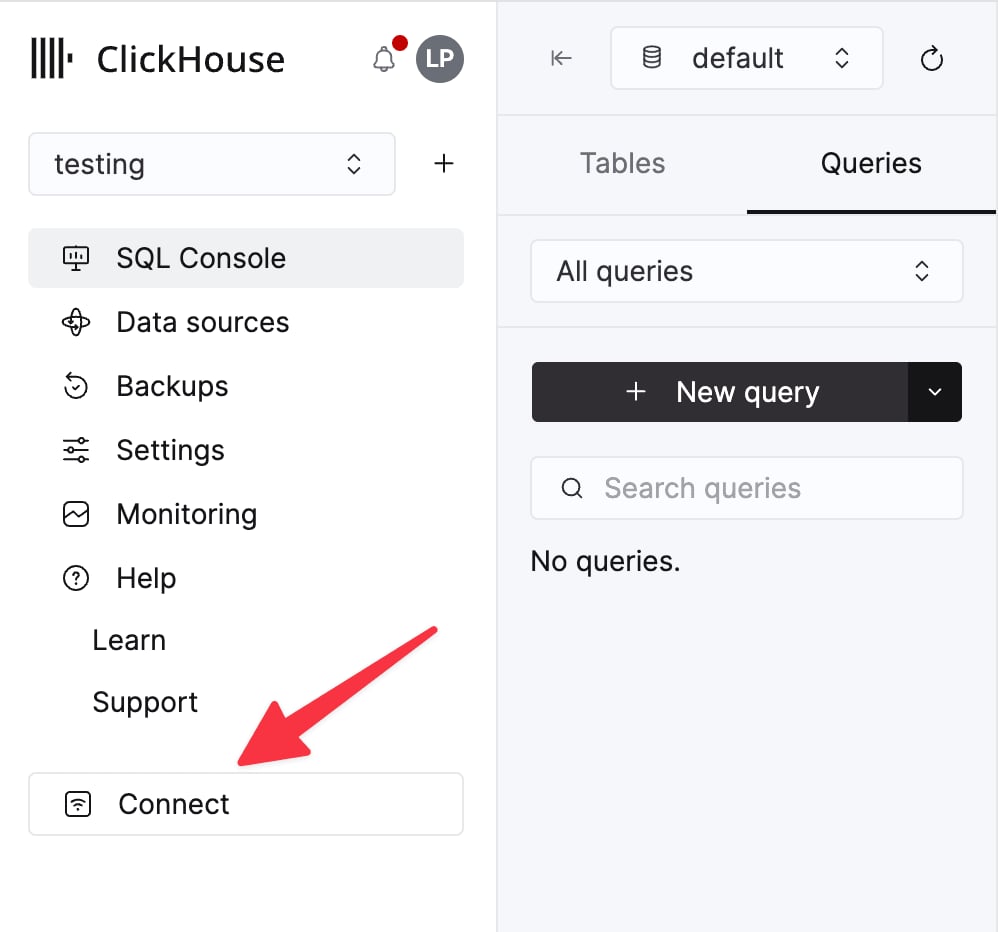
    The details for your ClickHouse Cloud service are available in the ClickHouse Cloud console.
    Select a service and click **Connect**:

    <div className="ch-image-md">
      <Frame>
        <img src="https://mintcdn.com/private-7c7dfe99-detect-table-modification/0yJtAU6cqYAQlCWC/images/_snippets/cloud-connect-button.webp?fit=max&auto=format&n=0yJtAU6cqYAQlCWC&q=85&s=2d1e2340e1ddccf3199ca1e41eeba836" alt="ClickHouse Cloud service connect button" width="998" height="932" data-path="images/_snippets/cloud-connect-button.webp" />
      </Frame>
    </div>

    Choose **HTTPS**. Connection details are displayed in an example `curl` command.

    <div className="ch-image-md">
      <Frame>
        <img src="https://mintcdn.com/private-7c7dfe99-detect-table-modification/0yJtAU6cqYAQlCWC/images/_snippets/connection-details-https.webp?fit=max&auto=format&n=0yJtAU6cqYAQlCWC&q=85&s=2ea2af378046d5ec87ea8e78de573bc1" alt="ClickHouse Cloud HTTPS connection details" width="1320" height="1184" data-path="images/_snippets/connection-details-https.webp" />
      </Frame>
    </div>

    If you're using self-managed ClickHouse, the connection details are set by your ClickHouse administrator.
  </Step>

  <Step title="Download the ClickHouse plugin for Metabase" id="2--download-the-clickhouse-plugin-for-metabase">
    1. If you don't have a `plugins` folder, create one as a subfolder of where you have `metabase.jar` saved.

    2. The plugin is a JAR file named `clickhouse.metabase-driver.jar`. Download the latest version of the JAR file at <a href="https://github.com/clickhouse/metabase-clickhouse-driver/release" target="_blank">[https://github.com/clickhouse/metabase-clickhouse-driver/releases/latest](https://github.com/clickhouse/metabase-clickhouse-driver/releases/latest)</a>

    3. Save `clickhouse.metabase-driver.jar` in your `plugins` folder.

    4. Start (or restart) Metabase so that the driver gets loaded properly.

    5. Access Metabase at <a href="http://localhost:3000/" target="_blank">[http://hostname:3000](http://hostname:3000)</a>. On the initial startup, you will see a welcome screen and have to work your way through a list of questions. If prompted to select a database, select "**I'll add my data later**":
  </Step>

  <Step title="Connect Metabase to ClickHouse" id="3--connect-metabase-to-clickhouse">
    1. Click on the gear icon in the top-right corner and select **Admin Settings** to visit your <a href="http://localhost:3000/admin/settings/setup" target="_blank">Metabase admin page</a>.

    2. Click on **Add a database**. Alternately, you can click on the **Databases** tab and select the **Add database** button.

    3. If your driver installation worked, you will see **ClickHouse** in the dropdown menu for **Database type**:

           <Image size="md" img="https://mintcdn.com/private-7c7dfe99-detect-table-modification/svLCKm9RWi4jibqG/images/integrations/data-visualization/metabase_01.webp?fit=max&auto=format&n=svLCKm9RWi4jibqG&q=85&s=a5220dc3f694834daa750814c6de5c9f" alt="Metabase database selection showing ClickHouse as an option" border width="1168" height="504" data-path="images/integrations/data-visualization/metabase_01.webp" />

    4. Give your database a **Display name**, which is a Metabase setting - so use any name you like.

    5. Enter the connection details of your ClickHouse database. Enable a secure connection if your ClickHouse server is configured to use SSL. For example:

           <Image size="md" img="https://mintcdn.com/private-7c7dfe99-detect-table-modification/svLCKm9RWi4jibqG/images/integrations/data-visualization/metabase_02.webp?fit=max&auto=format&n=svLCKm9RWi4jibqG&q=85&s=05c38065e8d96c5b98936ec7d7dc8d22" alt="Metabase connection details form for ClickHouse database" border width="682" height="1020" data-path="images/integrations/data-visualization/metabase_02.webp" />

    6. Click the **Save** button and Metabase will scan your database for tables.
  </Step>

  <Step title="Run a SQL query" id="4-run-a-sql-query">
    1. Exit the **Admin settings** by clicking the **Exit admin** button in the top-right corner.

    2. In the top-right corner, click the **+ New** menu and notice you can ask questions, run SQL queries, and build a dashboard:

           <Image size="sm" img="https://mintcdn.com/private-7c7dfe99-detect-table-modification/svLCKm9RWi4jibqG/images/integrations/data-visualization/metabase_03.webp?fit=max&auto=format&n=svLCKm9RWi4jibqG&q=85&s=a47bdbefbe0a384f44aea395faf995c7" alt="Metabase New menu showing options to create questions, SQL queries, and dashboards" border width="283" height="322" data-path="images/integrations/data-visualization/metabase_03.webp" />

    3. For example, here is a SQL query run on a table named `uk_price_paid` that returns the average price paid by year from 1995 to 2022:

           <Image size="md" img="https://mintcdn.com/private-7c7dfe99-detect-table-modification/svLCKm9RWi4jibqG/images/integrations/data-visualization/metabase_04.webp?fit=max&auto=format&n=svLCKm9RWi4jibqG&q=85&s=5951b26162f74f2cecc6b7b8c16e7f4a" alt="Metabase SQL editor showing a query on UK price paid data" border width="674" height="1003" data-path="images/integrations/data-visualization/metabase_04.webp" />
  </Step>

  <Step title="Ask a question" id="5-ask-a-question">
    1. Click on **+ New** and select **Question**. Notice you can build a question by starting with a database and table. For example, the following question is being asked of a table named `uk_price_paid` in the `default` database. Here is a simple question that calculates the average price by town, within the county of Greater Manchester:

           <Image size="md" img="https://mintcdn.com/private-7c7dfe99-detect-table-modification/svLCKm9RWi4jibqG/images/integrations/data-visualization/metabase_06.webp?fit=max&auto=format&n=svLCKm9RWi4jibqG&q=85&s=944434a8031be4118313eb8fe33d56af" alt="Metabase question builder interface with UK price data" border width="869" height="1049" data-path="images/integrations/data-visualization/metabase_06.webp" />

    2. Click the **Visualize** button to see the results in a tabular view.

           <Image size="md" img="https://mintcdn.com/private-7c7dfe99-detect-table-modification/svLCKm9RWi4jibqG/images/integrations/data-visualization/metabase_07.webp?fit=max&auto=format&n=svLCKm9RWi4jibqG&q=85&s=3b06e3197791ffbbeb6842c96e464a01" alt="Metabase visualization showing tabular results of average prices by town" border width="1222" height="893" data-path="images/integrations/data-visualization/metabase_07.webp" />

    3. Below the results, click the **Visualization** button to change the visualization to a bar chart (or any of the other options available):

           <Image size="md" img="https://mintcdn.com/private-7c7dfe99-detect-table-modification/svLCKm9RWi4jibqG/images/integrations/data-visualization/metabase_08.webp?fit=max&auto=format&n=svLCKm9RWi4jibqG&q=85&s=ed3177332a1002ccce163945a51229d1" alt="Metabase pie chart visualization of average prices by town in Greater Manchester" border width="1222" height="893" data-path="images/integrations/data-visualization/metabase_08.webp" />
  </Step>
</Steps>

<h2 id="learn-more">
  Learn more
</h2>

Find more information about Metabase and how to build dashboards by <a href="https://www.metabase.com/docs/latest/" target="_blank">visiting the Metabase documentation</a>.