> ## Documentation Index
> Fetch the complete documentation index at: https://private-7c7dfe99-detect-table-modification.mintlify.site/llms.txt
> Use this file to discover all available pages before exploring further.

> Omni is an enterprise platform for BI, data applications, and embedded analytics that helps you explore and share insights in real time.

# Omni

export const PartnerBadge = () => {
  return <div className="PartnerBadge">
            <div className="PartnerBadgeIcon">
                <svg width="16" height="16" viewBox="0 0 16 16" fill="none" xmlns="http://www.w3.org/2000/svg">
                    <polyline points="12.5 9.5 10 12 6 11 2.5 8.5" stroke="currentColor" strokeLinecap="round" strokeLinejoin="round" strokeWidth="1" />
                    <polyline points="4.54 4.41 8 3.5 11.46 4.41" stroke="currentColor" strokeLinecap="round" strokeLinejoin="round" strokeWidth="1" />
                    <path d="M2.15,3.78 L0.55,6.95 A0.5,0.5 0,0,0 0.77,7.62 L2.5,8.5 L4.54,4.41 L2.82,3.55 A0.5,0.5 0,0,0 2.15,3.78 Z" stroke="currentColor" strokeLinecap="round" strokeLinejoin="round" strokeWidth="1" />
                    <path d="M13.5,8.5 L15.23,7.62 A0.5,0.5 0,0,0 15.45,6.95 L13.85,3.78 A0.5,0.5 0,0,0 13.18,3.55 L11.46,4.41 Z" stroke="currentColor" strokeLinecap="round" strokeLinejoin="round" strokeWidth="1" />
                    <path d="M11.5,4.5 L9,4.5 L6.15,7.27 A0.5,0.5 0,0,0 6.24,8.05 C7.33,8.74 8.81,8.72 10,7.5 L12.5,9.5 L13.5,8.5" stroke="currentColor" strokeLinecap="round" strokeLinejoin="round" strokeWidth="1" />
                    <polyline points="7.75 13.5 5.15 12.85 3.5 11.67" stroke="currentColor" strokeLinecap="round" strokeLinejoin="round" strokeWidth="1" />
                </svg>
            </div>
            Partner Integration
        </div>;
};

export const Image = ({img, alt, size = "lg"}) => {
  const normalizedSize = ["sm", "md", "lg"].includes(size) ? size : "lg";
  return <div className={`ch-image-${normalizedSize}`}>
      <Frame>
        <img src={img} alt={alt} />
      </Frame>
    </div>;
};

Omni can connect to ClickHouse Cloud or on-premise deployment via the official ClickHouse data source.

<Steps>
  <Step title="Gather your connection details" id="1-gather-your-connection-details">
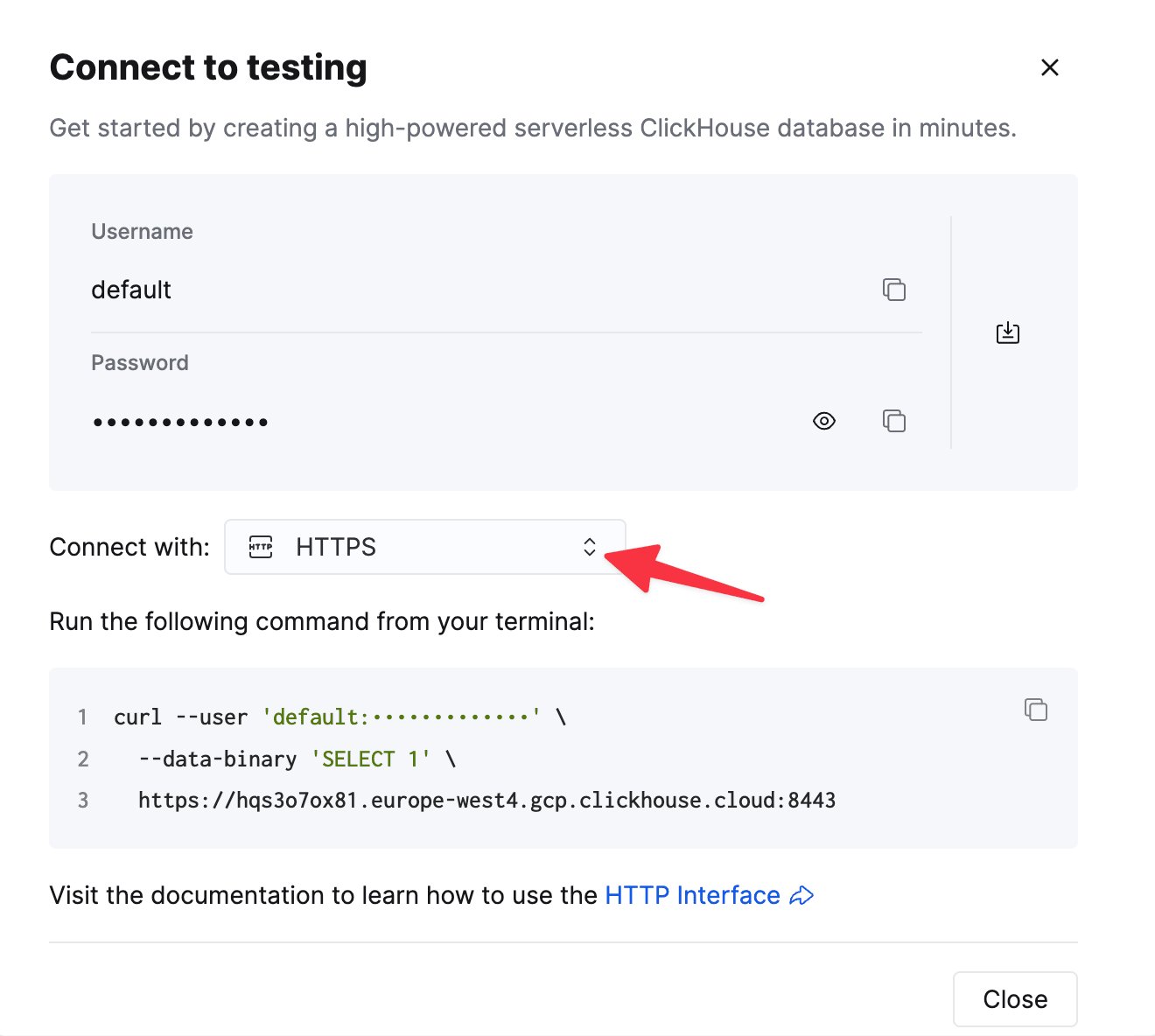
    To connect to ClickHouse with HTTP(S) you need this information:

    | Parameter(s)              | Description                                                                                                    |
    | ------------------------- | -------------------------------------------------------------------------------------------------------------- |
    | `HOST` and `PORT`         | Typically, the port is 8443 when using TLS or 8123 when not using TLS.                                         |
    | `DATABASE NAME`           | Out of the box, there is a database named `default`, use the name of the database that you want to connect to. |
    | `USERNAME` and `PASSWORD` | Out of the box, the username is `default`. Use the username appropriate for your use case.                     |

    The details for your ClickHouse Cloud service are available in the ClickHouse Cloud console.
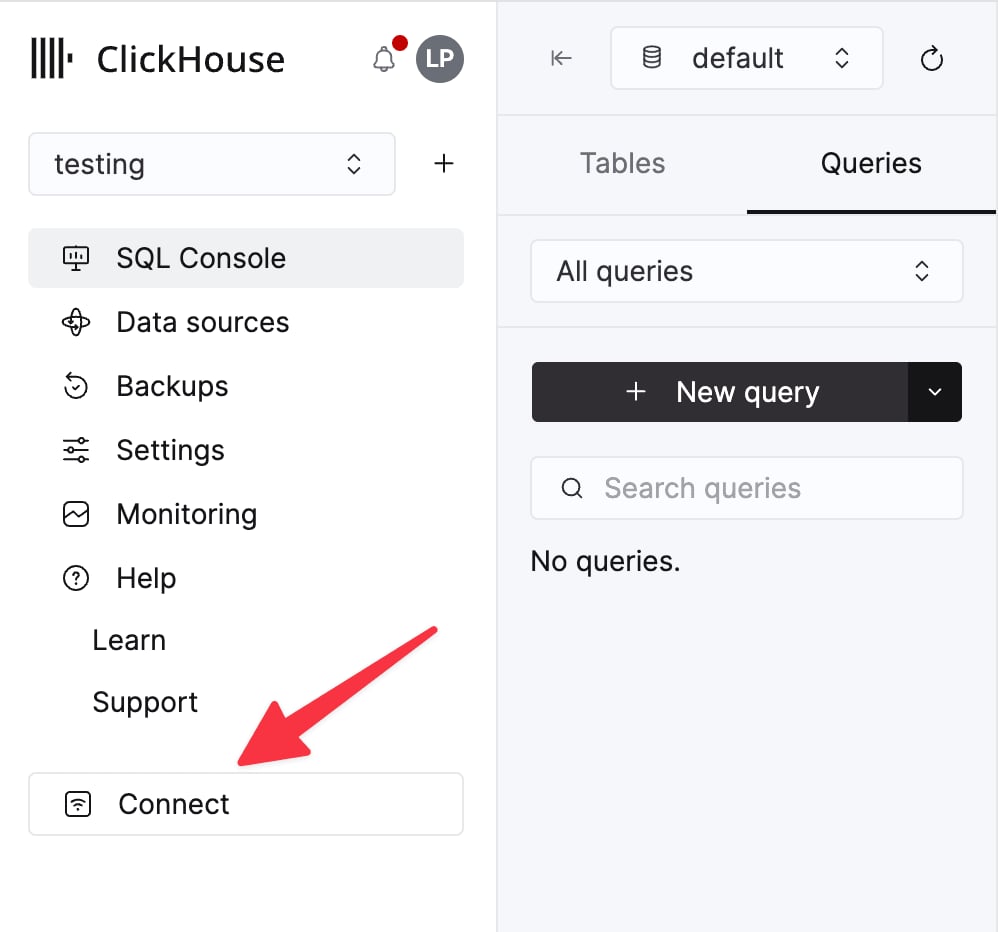
    Select a service and click **Connect**:

    <div className="ch-image-md">
      <Frame>
        <img src="https://mintcdn.com/private-7c7dfe99-detect-table-modification/0yJtAU6cqYAQlCWC/images/_snippets/cloud-connect-button.webp?fit=max&auto=format&n=0yJtAU6cqYAQlCWC&q=85&s=2d1e2340e1ddccf3199ca1e41eeba836" alt="ClickHouse Cloud service connect button" width="998" height="932" data-path="images/_snippets/cloud-connect-button.webp" />
      </Frame>
    </div>

    Choose **HTTPS**. Connection details are displayed in an example `curl` command.

    <div className="ch-image-md">
      <Frame>
        <img src="https://mintcdn.com/private-7c7dfe99-detect-table-modification/0yJtAU6cqYAQlCWC/images/_snippets/connection-details-https.webp?fit=max&auto=format&n=0yJtAU6cqYAQlCWC&q=85&s=2ea2af378046d5ec87ea8e78de573bc1" alt="ClickHouse Cloud HTTPS connection details" width="1320" height="1184" data-path="images/_snippets/connection-details-https.webp" />
      </Frame>
    </div>

    If you're using self-managed ClickHouse, the connection details are set by your ClickHouse administrator.
  </Step>

  <Step title="Create a ClickHouse data source" id="2-create-a-clickhouse-data-source">
    Navigate to Admin -> Connections and click the "Add Connection" button in the top right corner.

    <Image size="lg" img="https://mintcdn.com/private-7c7dfe99-detect-table-modification/svLCKm9RWi4jibqG/images/integrations/data-visualization/omni_01.webp?fit=max&auto=format&n=svLCKm9RWi4jibqG&q=85&s=7057a1a19e6c359cdd92c693b66fd487" alt="Omni admin interface showing the Add Connection button in the Connections section" border width="3019" height="1635" data-path="images/integrations/data-visualization/omni_01.webp" />

    <br />

    Select `ClickHouse`. Enter your credentials in the form.

    <Image size="lg" img="https://mintcdn.com/private-7c7dfe99-detect-table-modification/svLCKm9RWi4jibqG/images/integrations/data-visualization/omni_02.webp?fit=max&auto=format&n=svLCKm9RWi4jibqG&q=85&s=27be7830e0c618dd1203dc99ae03732d" alt="Omni connection configuration interface for ClickHouse showing credential form fields" border width="3008" height="1552" data-path="images/integrations/data-visualization/omni_02.webp" />

    <br />

    Now you should can query and visualize data from ClickHouse in Omni.
  </Step>
</Steps>